docker-tutorial
🐳 Docker Tutorial for ML Engineers


This repo contains a hands-on introduction to Docker concepts, workflows, and commands for ML Engineers. It covers the basics of Docker, and Docker Compose through practical examples and best practices. The tutorial includes three hands-on projects demonstrating usage of Docker. It also introduces modern Python tooling with uv for fast and reliable dependency management.
Table of Contents
🎓 Introduction
🛠️ Docker Fundamentals
🔄 Docker Compose Introduction
🚀 Hands-on Docker Projects
- Project 1: Pre-built Docker Nginx Website Deployment
- Project 2: Custom Docker PDF Generation with Python
- Project 3: Docker Compose Medical Text Extraction Service
🤖 Docker for ML Projects
⚡ Modern Python Tooling uv
- Comparison of Python Package Managers
- Essential uv Commands
- Project Setup
- Best Practices
- Docker with uv
📚 Resources
🎓 Introduction
🤔 What is Docker?
Docker is an open-source developer tool that automates the deployment and management of applications using containerization technology. It packages an application and all its dependencies together in the form of a container, ensuring that the application works seamlessly in any environment or machine.
📦 What is Containerization?
Containerization is a lightweight form of virtualization that packages an application and its dependencies into a standardized unit (container) for software development and deployment.
The motivation behind containerization is to create a consistent environment for applications to run in, regardless of the underlying host system. Containers are isolated from each other and share the host OS kernel and resources, making them lightweight and efficient.
Comparison to Traditional Deployment:
| Traditional Deployment | Containerization |
|---|---|
| Inconsistent environments | Consistent across environments |
| Complex dependency management | Dependencies bundled with application |
| Requires full OS per application | Shares host OS kernel accross applications |
| Heavy resource consumption | Lightweight resource usage |
| Slow to start up | Nearly instant startup |
| Difficult to scale | Easy to scale horizontally |
Key Benefits
- 🔄 Consistency: “Works on my machine” problem eliminated
- 🔒 Isolation: Applications run in isolated environments
- ⚡ Efficiency: Uses fewer resources than traditional VMs
- 🌐 Portability: Run anywhere Docker is installed
- 📈 Scalability: Easily scale containers up or down
Docker Architecture
Docker uses a client-server architecture with these main components:
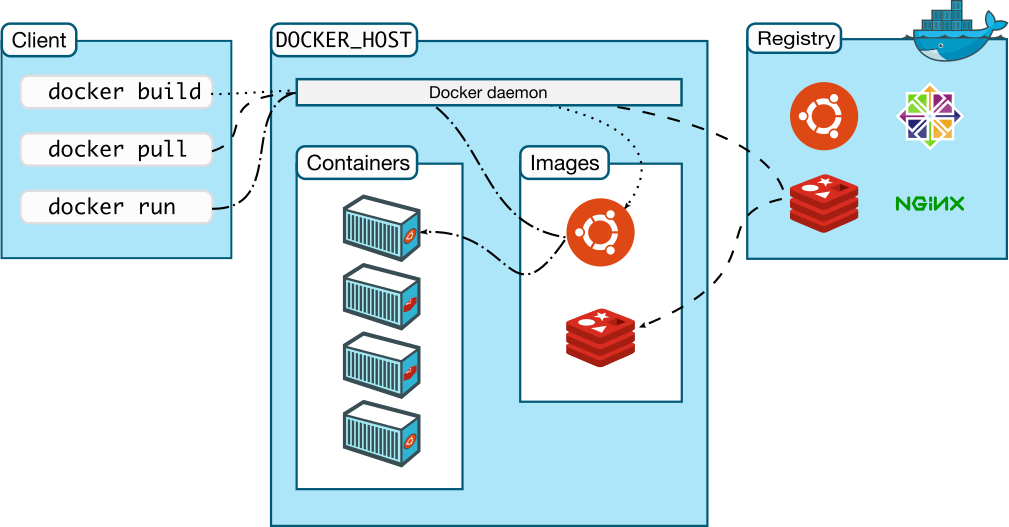
- Docker Daemon: Background service running on the host that manages Docker containers
- Docker Client: Command-line interface to interact with Docker
- Docker Images: Read-only templates used to create containers
- Docker Containers: Runnable instances of images
- Docker Hub: Registry service for sharing and finding Docker images
Common Use Cases
- Development: Consistent dev environments across team
- Microservices: Deploying and scaling independent services
- CI/CD: Integration with continuous delivery pipelines
🛠️ Docker Fundamentals
Installation and Setup
Windows Installation
Docker can be installed easily using Docker Desktop which also comes with a GUI application. It is available for Windows, MacOS, and Linux. Here’s how to install in windows:
- Download Docker Desktop from docker.com
- Install and enable WSL 2 if prompted
- Verify installation:
docker --version
Linux Installation (Ubuntu)
In Ubuntu, the latest Docker Engine can be intalled using the following commands:
# Add Docker's official GPG key:
sudo apt-get update
sudo apt-get install ca-certificates curl
sudo install -m 0755 -d /etc/apt/keyrings
sudo curl -fsSL https://download.docker.com/linux/ubuntu/gpg -o /etc/apt/keyrings/docker.asc
sudo chmod a+r /etc/apt/keyrings/docker.asc

# Add the repository to Apt sources:
echo \
  "deb [arch=$(dpkg --print-architecture) signed-by=/etc/apt/keyrings/docker.asc] https://download.docker.com/linux/ubuntu \
  $(. /etc/os-release && echo "${UBUNTU_CODENAME:-$VERSION_CODENAME}") stable" | \
  sudo tee /etc/apt/sources.list.d/docker.list > /dev/null
sudo apt-get update

# Install Docker Engine
sudo apt-get install docker-ce docker-ce-cli containerd.io docker-buildx-plugin docker-compose-plugin

# Verify installation
docker --version
💻 Essential Commands
💿 Image Management
| Command | Description |
|---|---|
docker images |
List downloaded images |
docker pull <image> |
Download an image |
docker push <image> |
Upload an image to registry |
docker rmi <image> |
Remove an image |
docker build -t <name>:<tag> <path> |
Build image from Dockerfile |
docker history <image> |
Show image layer history |
docker save <image> > file.tar |
Save image to tar archive |
docker load < file.tar |
Load image from tar archive |
📦 Container Management
| Command | Description |
|---|---|
docker run <image> |
Create and start a container |
docker run -d <image> |
Run container in detached mode |
docker run -p <host-port>:<container-port> <image> |
Map container port to host port |
docker run -v <host-path>:<container-path> <image> |
Mount host directory into container |
docker run --name <name> <image> |
Assign a name to the container |
docker run --rm <image> |
Remove container when it exits |
docker start <container> |
Start a stopped container |
docker stop <container> |
Stop a running container |
docker restart <container> |
Restart a container |
docker pause <container> |
Pause a running container |
docker unpause <container> |
Unpause a paused container |
docker rm <container> |
Remove a container |
docker rm -f <container> |
Force remove a running container |
🔎 Container Inspection
| Command | Description |
|---|---|
docker ps |
List running containers |
docker ps -a |
List all containers |
docker logs <container> |
View container logs |
docker logs -f <container> |
Follow container logs |
docker inspect <container> |
View detailed container info |
docker exec -it <container> <command> |
Execute command in running container |
docker exec -it <container> bash |
Start a shell in container |
docker top <container> |
Display running processes |
docker stats |
Display container resource usage |
⭕ System Commands
| Command | Description |
|---|---|
docker info |
Display system-wide information |
docker version |
Show Docker version |
docker system prune |
Remove unused data |
docker system prune -a |
Remove all unused images and containers |
Dockerfile Basics
A Dockerfile is a text document containing instructions to build a Docker image:
# Base image
FROM python:3.9-slim

# Set working directory
WORKDIR /app

# Copy requirements and install dependencies
COPY requirements.txt .
RUN pip install --no-cache-dir -r requirements.txt

# Copy application code
COPY src/ .

# Set environment variables
ENV HOST="localhost"
ENV PORT=8080

# Expose port
EXPOSE 8080

# Command to run when container starts
CMD ["python", "app.py"]
Common Dockerfile Instructions
| Instruction | Description |
|---|---|
FROM |
Base image to build from |
WORKDIR |
Set working directory |
COPY |
Copy files from host to image |
ADD |
Copy files and extract archives |
RUN |
Execute commands during build |
ENV |
Set environment variables |
EXPOSE |
Document container ports |
VOLUME |
Create mount point for volumes |
CMD |
Default command to run on start |
ENTRYPOINT |
Configure container as executable |
Image Layers
Docker uses a layered filesystem to build images. Each instruction in a Dockerfile creates a new layer:
- Layers are cached and reused for faster builds
- Only changed layers are rebuilt
- Shared layers are stored once
- Best practice: Order instructions from least to most frequently changed
🔄 Docker Compose Introduction
What is Docker Compose?
Docker Compose is a tool for defining and running multi-container Docker applications. It uses a YAML file to configure application services, networks, and volumes.
docker-compose.yml Structure
services:
  web_service:
    build: ./web
    ports:
      - "8000:8000"
    volumes:
      - ./web:/app
    environment:
      - DEBUG=True
    depends_on:
      - db_service

  db_service:
    image: postgres:13
    volumes:
      - postgres_data:/var/lib/postgresql/data
    environment:
      - POSTGRES_USER=postgres
      - POSTGRES_PASSWORD=postgres
      - POSTGRES_DB=myapp

volumes:
  postgres_data:

networks:
  default:
    driver: bridge
Key Components
- services: Container definitions
- networks: Network configuration
- volumes: Persistent data storage
- environment: Environment variables
- depends_on: Service dependencies
💻 Essential Commands
| Command | Description |
|---|---|
docker compose up |
Create and start all services |
docker compose up -d |
Start in detached mode |
docker compose down |
Stop and remove all services |
docker compose down -v |
Also remove volumes |
docker-compose down --rmi all |
Remove all images |
docker compose ps |
List containers |
docker compose logs |
View output from all services |
docker compose logs -f |
Follow log output |
docker compose exec <service> <command> |
Execute command in service |
docker compose build |
Build or rebuild services |
docker compose pull |
Pull service images |
docker compose restart |
Restart services |
docker compose stop |
Stop services |
docker compose start |
Start services |
Debugging Containers
- Logs:
docker logs <container>ordocker compose logs <service> - Interactive Shell:
docker exec -it <container> bash - Inspect Processes:
docker top <container> - Resource Usage:
docker stats - Network Inspection:
docker network inspect <network> - Volume Inspection:
docker volume inspect <volume>
🚀 Hands-on Docker Projects
This tutorial includes three hands-on projects that demonstrate different aspects of Docker and common use cases. Each project builds upon the concepts learned in previous sections and introduces new Docker features. These projects can serve as a base template for your own Docker projects.
🌐 Project 1: Pre-built Docker Nginx Website Deployment
Location: 1-nginx-website
This project demonstrates how to use pre-built Docker images to quickly deploy a static website using Nginx. It uses pre-built image of Nginx from Docker Hub.
Learning Objectives:
- Pull and run pre-built Docker images
- Configure container ports and volumes
- Use Docker Compose for simple deployments
For more details on the project, please refer to Project 1 Documentation
📄 Project 2: Custom Docker PDF Generation with Python
Location: 2-pdf-generator
This project shows how to build a custom Docker image for a Python-based PDF generation service. It demonstrates creating multi-stage builds, handling dependencies, and exposing services through APIs.
Learning Objectives:
- Write efficient Dockerfile
- Manage Python dependencies in containers
- Handle file I/O in containers
For more details on the project, please refer to Project 2 Documentation
💊 Project 3: Docker Compose Medical Text Extraction Service
Location: 3-text-extractor
This advanced project demonstrates a real-world ML service using Docker Compose to orchestrate multiple containers. It includes a text extraction service, API server, and database, showing how to manage complex multi-container applications.
Learning Objectives:
- Design multi-container applications
- Manage container dependencies
- Handle persistent data
For more details on the project, please refer to Project 3 Documentation
🤖 Docker for ML Projects
Docker provides several benefits for Machine Learning projects:
- Model deployment: Package models with serving infrastructure
- GPU support: Access to NVIDIA GPUs with nvidia-docker and easy setup
- Reproducible environments: Ensure consistent dependencies
- Scalable training: Distribute training across containers
- ML-specific images: Pre-built images for TensorFlow, PyTorch, etc.
GPU Support in Docker
To use GPUs in Docker containers the following approaches can be used:
Install NVIDIA Container Toolkit
The NVIDIA Container Toolkit is a collection of libraries and utilities enabling users to build and run GPU-accelerated containers. Follow the instructions on the official guide to install the toolkit.
Run containers with GPU access
Here’s the commands to run a containers with GPU support:
# Check GPU availability
docker run --gpus all nvidia/cuda:11.0-base nvidia-smi

# Run TensorFlow with all GPU support
docker run --gpus all tensorflow/tensorflow:latest-gpu

# Run TensorFlow with specific GPU support
docker run -it --rm --gpus '"device=0,2"' tensorflow/tensorflow:latest-gpu nvidia-smi
Docker Compose GPU configuration
Here’s an example of a Compose file for running a service with access to 1 GPU device:
services:
  ml_service:
    image: nvidia/cuda:12.3.1-base-ubuntu20.04
    command: nvidia-smi
    deploy:
      resources:
        reservations:
          devices:
            - driver: nvidia
              count: 1
              capabilities: [gpu]
Example ML Project Dockerfile
FROM nvidia/cuda:11.6.2-cudnn8-runtime-ubuntu20.04

WORKDIR /app

# Install Python and dependencies
RUN apt-get update && apt-get install -y \
    python3 \
    python3-pip \
    && rm -rf /var/lib/apt/lists/*

# Install ML libraries
COPY requirements.txt .
RUN pip3 install --no-cache-dir -r requirements.txt

# Copy model and code
COPY . .

# Expose port for API
EXPOSE 8000

# Start the model server
CMD ["python3", "serve.py"]
⚡ Modern Python Tooling uv
uv is an extremely fast Python package and project manager written in Rust. It aims to be a modern replacement for tools like pip, pip-tools, poetry, virtualenv and more. With speeds 10-100x faster than pip for dependency installation, it brings modern package management capabilities while maintaining backward compatibility with existing Python tooling.
Key features of uv:
- 🚀 Ultra-fast performance: 10-100x faster than pip for large dependency trees
- 🛠️ All-in-one tool: Replaces pip, pip-tools, poetry, virtualenv and more
- 📦 Project management: Universal lockfile format and workspace support
- 🐍 Python version management: Install and manage Python versions
- 💾 Space efficient: Global cache for dependency deduplication
- 🌐 Cross-platform: Supports macOS, Linux and Windows
- ⚡ Easy installation: Can be installed via curl or pip without Rust
- 🔄 Compatibility: Drop-in replacement for pip
uv is developed by Astral, the creators of Ruff, and represents the next generation of Python tooling focused on performance and developer experience.
Comparison of Python Package Managers
| Tool | Pros | Cons |
|---|---|---|
| conda | Environment + package manager, supports non-Python deps | Slow, heavy |
| venv | Built-in, lightweight | Just virtual environments, no package management |
| poetry | Modern dependency resolution, builds packages | Complex, sometimes slow |
| uv | Ultra-fast, Rust-based, compatible with pip | Newer, fewer features |
Essential uv Commands
| Command | Description |
|---|---|
uv venv |
Create virtual environment |
uv pip install <package> |
Install specific Python packages |
uv pip uninstall <package> |
Remove package |
uv pip install -r requirements.txt |
Install packages from requirements file |
uv pip freeze |
Output installed packages |
uv lock |
Generate uv.lock file from pyproject.toml |
uv sync |
Create virtual environment and install all dependencies from pyproject.toml |
Project Setup with uv
# Create new virtual environment
uv venv

# Activate virtual environment
source .venv/bin/activate  # Linux/Mac

# Install dependencies
uv pip install -r requirements.txt
Here’s a more detailed guide for working on projects using uv and pyproject.toml: Working on projects
Best Practices
- Regularly sync dependencies
- Generate lock file for reproducibility
- Add
uv.lockandpyproject.tomlfiles in version control
Docker with uv
FROM python:3.9-slim

# Install uv
RUN pip install uv

# Use uv for faster dependency installation
COPY requirements.txt .
RUN uv pip install -r requirements.txt

# ... rest of Dockerfile
📚 Resources
Docker Resources
- Official Docker Documentation
- Docker Compose Documentation
- Docker Hub - Public registry for Docker images
- Play with Docker - Free Docker playground
ML-Specific Docker Resources
- NVIDIA Container Toolkit
- NVIDIA Containers Registry
- Docker Best Practices for ML
- Deploying ML Models with Docker
- Top Docker Images for AI/ML
uv Resources
Tutorials and Courses
👥 Contributing
Contributions are welcome! Please feel free to submit a Pull Request. For major changes, please open an issue first to discuss what you would like to change.
- Fork the repository
- Create your feature branch (
git checkout -b feature/AmazingFeature) - Commit your changes (
git commit -m 'Add some AmazingFeature') - Push to the branch (
git push origin feature/AmazingFeature) - Open a Pull Request
Contribution Ideas
- Add new example projects
- Improve documentation and explanations
- Fix bugs or typos
- Add content for additional ML frameworks
- Enhance visuals and diagrams
📄 License
This project is licensed under the MIT License - see the LICENSE file for details.